

Build your knowledge base
Your knowledge base is what your assistant can answer from. Nothing else — if it isn't in here, your assistant won't invent it. This page covers getting material in and approving what comes out.
The important thing to know up front: you don't write entries one field at a time. You hand over a document, Voyse reads it and proposes entries, and you decide which ones to keep.
Add something
- Select Knowledge Base in the sidebar, then Add knowledge.
- Paste your text into the box, or select Attach file. Prose is fine — a policy, an FAQ, a handbook section, an interview transcript. You can attach text, markdown, CSV, Word, PDF, Excel or HTML.
- Select Read it.
Voyse then reads what you sent, pulls out the things a candidate could be told, and checks each one against what you already have. You'll see Reading what you sent while it works — usually under a minute.
Approve what came out
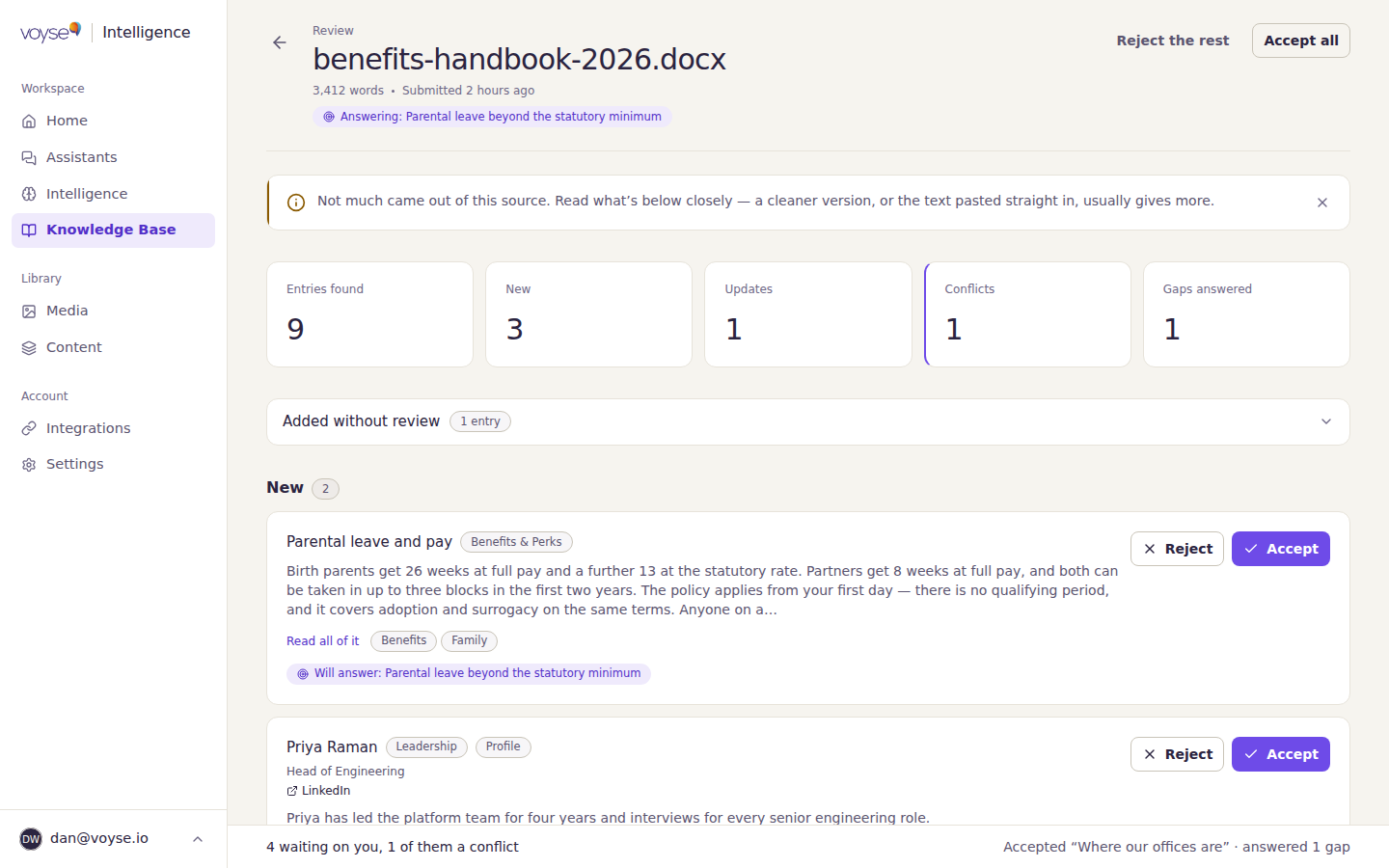
You land on the review screen, which is where the real decisions happen. At the top, a count of what was found, split into what's New, what's an Update to something you already had, and what Conflicts with it.
Work down the list:
- New entries: Accept to keep, Reject to discard. Read all of it expands the full text first.
- Updates: Compare both versions shows what changed, side by side, as Now and Proposed. Apply changes takes the new wording, Reject keeps what you had, Edit lets you adjust first.
- Conflicts: the new text contradicts something you already have, so this one is a real decision — Keep what we have or Use the new version. Read both before choosing.
Accept all takes everything still waiting. Reject the rest discards it. The bar at the bottom tracks how many are still waiting on you, and flags when one of them is a conflict.
Entries added without review
Some entries don't wait for you. Where Voyse is confident the material is unambiguous, the entry goes live immediately and appears in a group called Added without review. These are already answering candidates' questions. Each row has View to read it and Undo to take it back out, so check this group even when you're in a hurry.
Publishing, and what's live
Entries are either Live or Draft, and only live entries are used in answers.
- Anything you accept on the review screen goes live straight away — there's no processing delay to wait out.
- Entries brought in by a scan of your website arrive as drafts. They're marked with a Website import pill in your library, and a banner tells you how many are waiting for review. Nothing from a scan reaches candidates until you publish it.
- To change an entry's state yourself, open it and use Publish or Take offline. The pill next to the title flips to confirm it.
Editing an entry
Open any entry from your library to edit it. Text entries have a Category, a Title and the Content itself; links have a URL and Button text; profiles of your team have a Full name, Job title, About this person and a photo. Everything needs a title, and text entries need content, before Save changes becomes available.
Where this applies controls reach. Leave it on Every conversation and the entry is available everywhere. Choose Chosen roles only and you can narrow it to particular departments, locations, title keywords or roles — useful for anything that's only true of one team or one country.
This screen saves explicitly: your changes aren't stored until you select Save changes, and you'll be warned if you try to leave with unsaved work.
If it didn't work
- We couldn’t read this — nothing usable came out of the file. A cleaner file, or the text pasted straight in, usually works.
- Nothing to review here — everything in that document was already covered, so there was nothing new to propose. That's a good sign, not a failure.
- A banner warning that not much came out — read what's below closely. Scanned PDFs and heavily formatted files often give up less than the same text pasted directly.
What happens next
Every entry you publish widens what your assistant can answer, and closes any matching questions candidates were already asking — the review screen counts these as Gaps answered. To work the other way round, starting from what candidates asked and couldn't get, see Answer the questions candidates keep asking.