Add photos and video
Media is where your photos and video live: images and video for your assistants and content blocks. A written answer about the kitchen is worth less than the same answer with a photograph of it, and your assistant can only show what you have put here.
Upload something
- Select Media in the sidebar, then Add media.
- Choose what you're adding — an image (a photo, graphic or illustration) or a video (a video file. Speech is transcribed on upload.).
- Drop the file in, or select the box to browse. Images can be JPG, PNG, GIF or WebP; video can be MP4, MOV or WebM.
- Give the file a title. This is the only required field, and your assistant uses it to tell one image from another, so describe what's actually in the shot — "Kitchen, Leeds, morning prep" rather than "IMG_4821".
- Select Upload.
Anything you upload is available to your assistants and to content blocks straight away.
What happens to a video
Speech in a video is transcribed when you upload it, and Voyse writes a short summary of what the video covers. Your assistant uses that summary to work out when a video is worth showing and how to introduce it — so a video about shift patterns can come up when someone asks about shifts, rather than sitting unwatched on a careers page.
This means the more clearly someone speaks to the subject in a video, the better it gets used.
Keeping the library usable
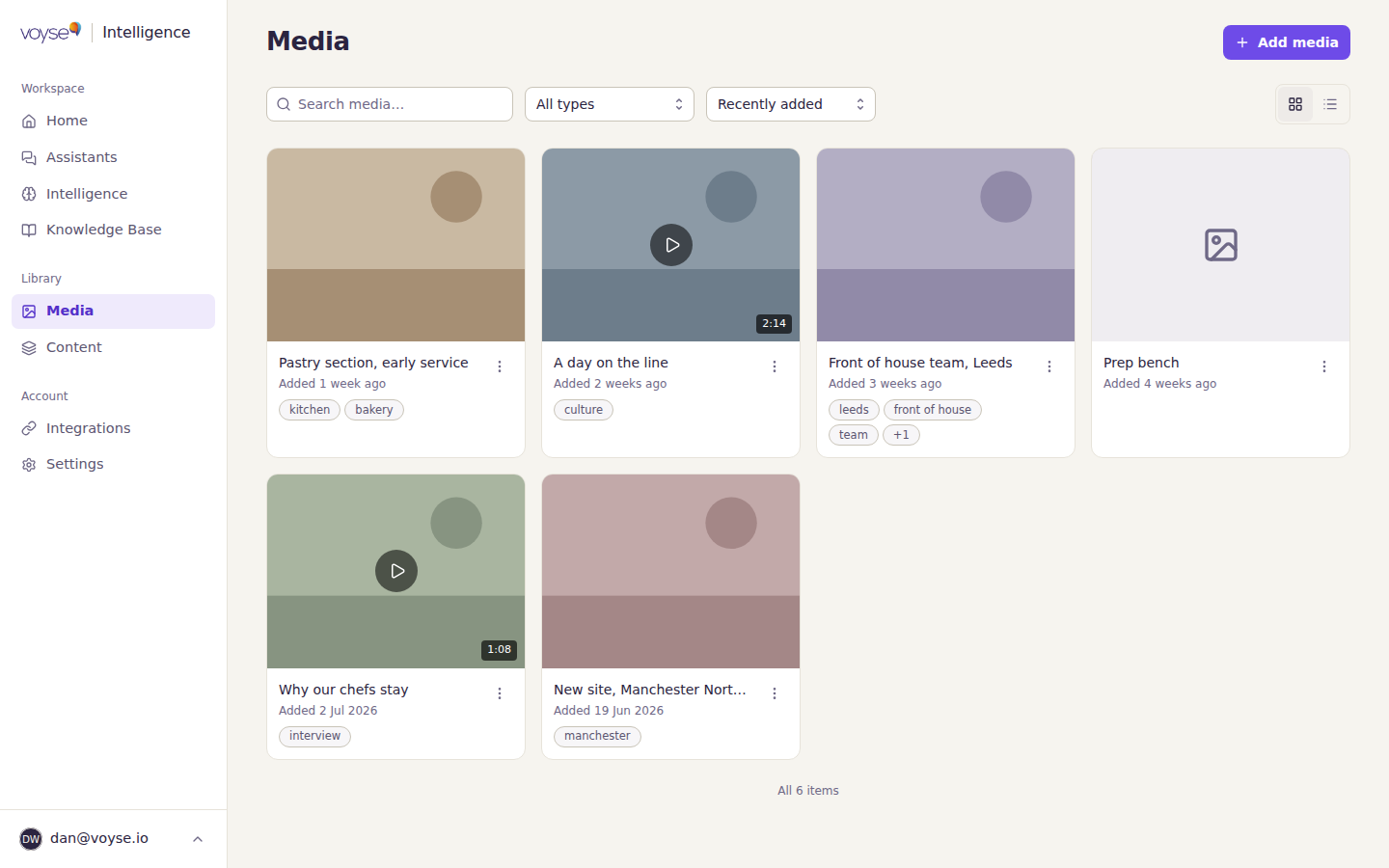
- Search media finds things by title and description, so titles are worth the ten seconds.
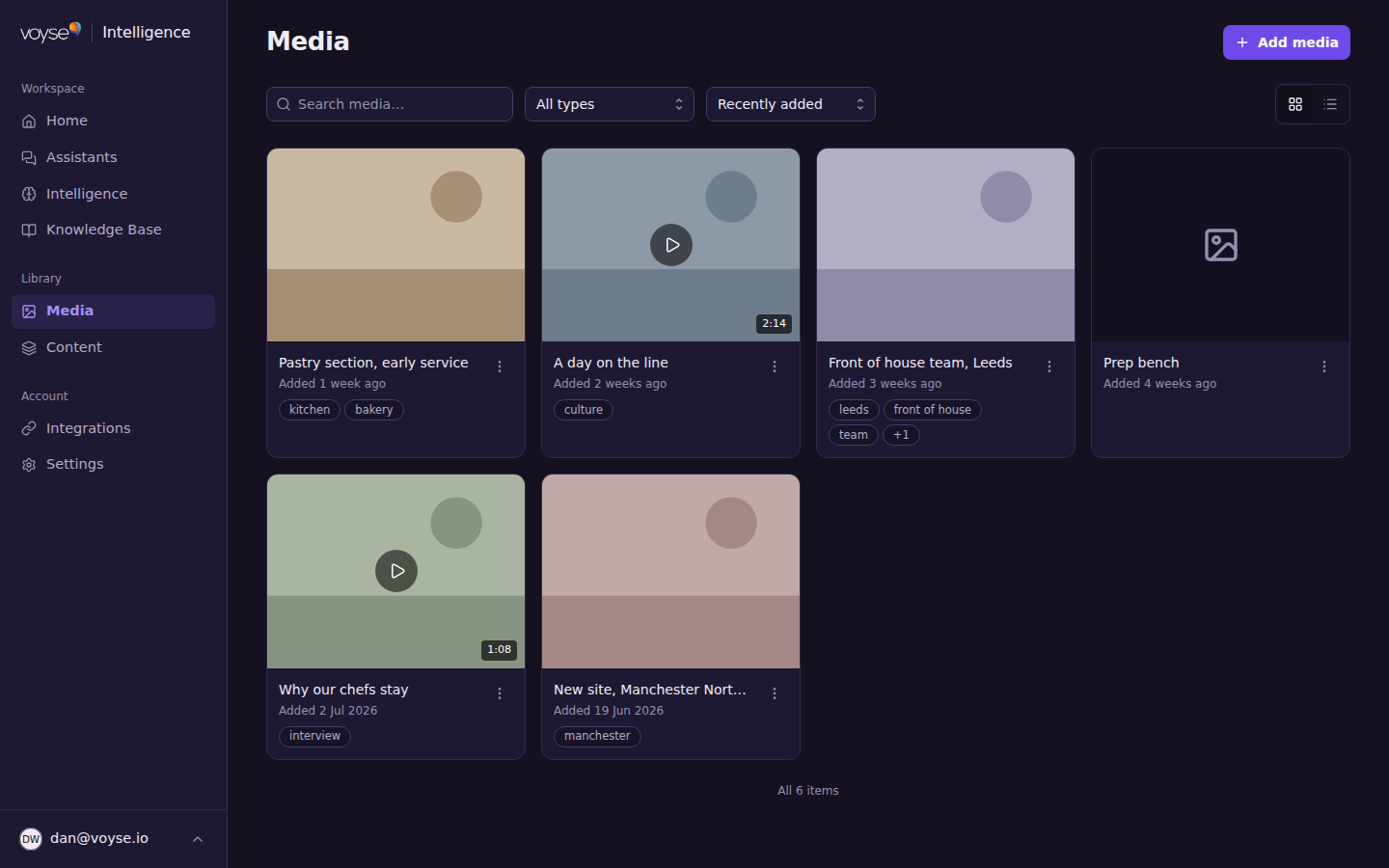
- Tag items — by site, team, or subject — and filter by type or tag once the library is bigger than one screen. Videos show their duration on the thumbnail.
- The library shows whether an item is in use. Not used yet means nothing refers to it — useful for finding what you uploaded and forgot.
- Open any item to change its title or description, then Save changes.
- Deleting an item can't be undone, and anything showing it loses it.
Next
Single images and videos can be shown on their own, but most of what candidates see is assembled into content blocks — carousels, quotes, benefit sets. See Content blocks.