Your home screen
Home is the first screen you land on, and it answers one question: is anything waiting for you? This page explains each part of it, and — where a number can mislead — what it actually counts.
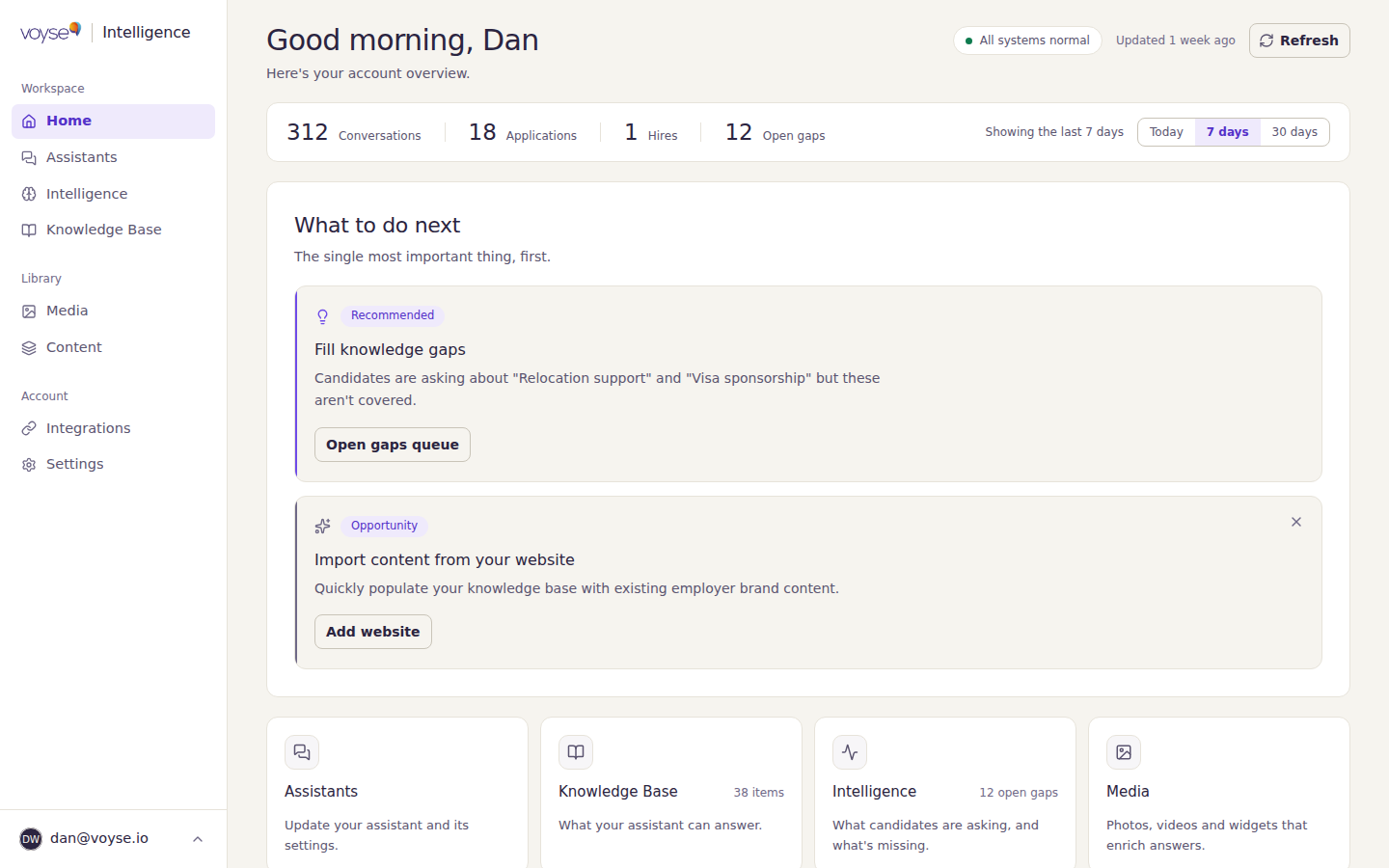
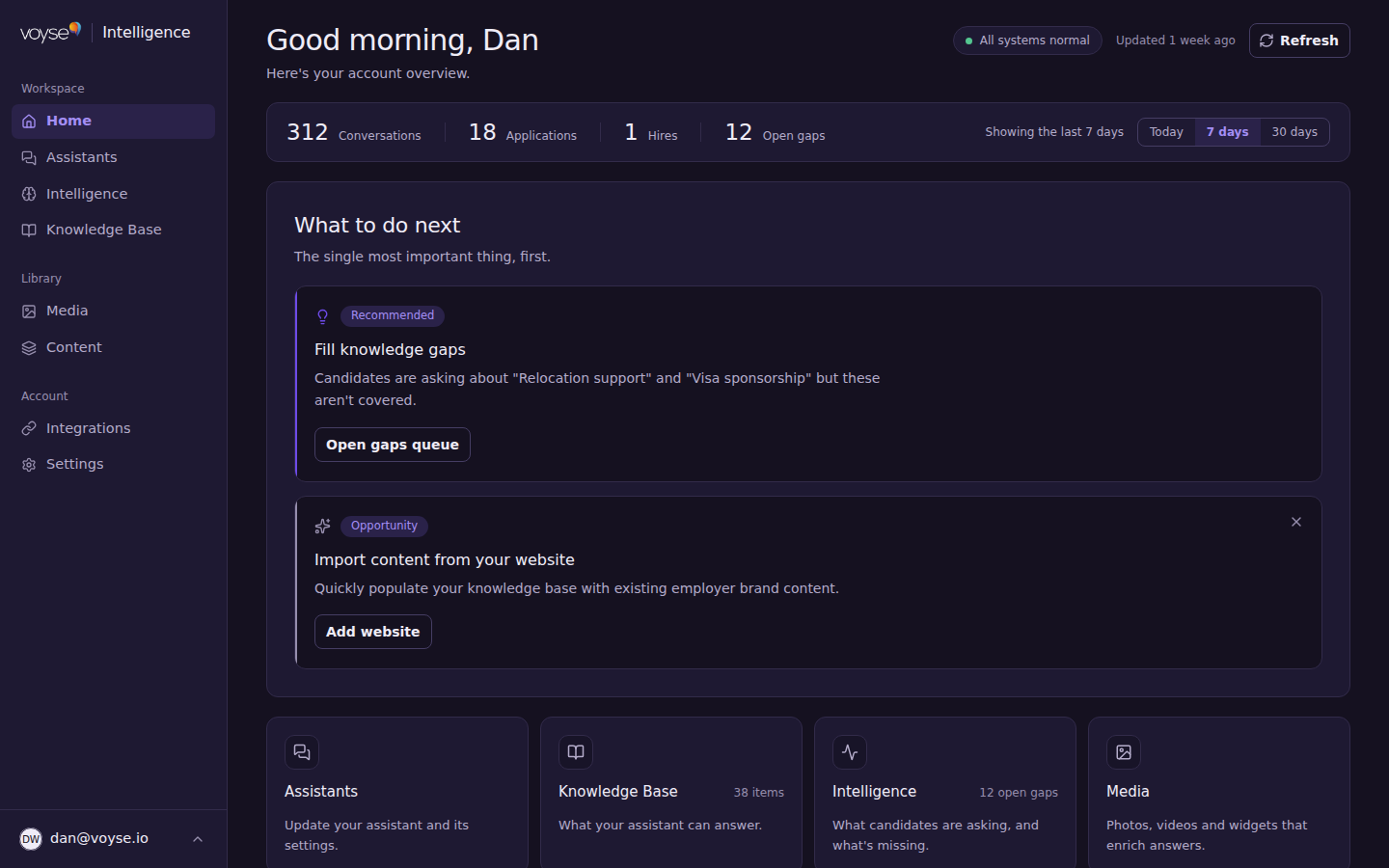
The header
Your name and the time of day, then a short line about where your account stands. To the right:
- A status pill. All systems normal means nothing needs attention. 1 system needs attention (or several) means something has stopped working and the reason is in What to do next below. Not live yet means your assistant hasn't gone live, so there is nothing for it to report yet.
- Updated, then how long ago. That is when these numbers were worked out — not a live feed. Refresh recalculates them.
The numbers
A single row of counts across the top:
| Count | What it counts |
|---|---|
| Conversations | Questions candidates sent your assistant. One candidate asking six things counts six times, so this measures how much you're being asked, not how many people asked. |
| Applications | Applications submitted during the period. |
| Hires | Hires confirmed during the period. This one appears only if your applicant tracking system reports hires back to Voyse — if you don't see it, that connection isn't there to read. |
| Open gaps | Questions candidates keep asking that your assistant can't answer well. |
Today, 7 days and 30 days change the period, and the row starts on 7 days. 7 days and 30 days count back from right now rather than from the start of a week or month, so they always cover a full period.
Open gaps is the exception: it ignores the period. It is the number of gaps open right now, in total. Switching to Today will not shrink it — which looks wrong next to three counts that do change. Nothing is broken: a gap stays open until you answer it, so a total is the only figure that means anything.
A dash instead of a number means nothing was recorded, which is different from a zero. Zero means candidates were active and the answer was genuinely none.
Before you go live you'll see Counts start when your assistant goes live. Once live but before anyone has asked anything: Live and listening — candidate questions will appear here.
What to do next
The most important thing first, and never more than three. Each one says what happened, why it matters, and gives you the button that fixes it. They are labelled by urgency — Failed and Needs attention are things that have stopped working or are actively costing you answers; Recommended and Opportunity are worth doing when you have a moment.
When there's genuinely nothing: Nothing needs your attention right now.
Before you're live this panel behaves differently — it shows the single next setup step, with See all setup steps to see the whole sequence.
What candidates asked
The questions your assistant couldn't answer, with the most-asked first, and how many times each was raised. Two labels tell you why each one is a problem:
- No coverage — your assistant has nothing at all on this topic.
- Possibly stale — you have an answer, but it may be out of date.
Open gaps queue takes you to the full list. Closing these is the single highest-value thing you can do for your assistant, and it has its own page: Answer the questions candidates keep asking.
When everything is covered you'll see All candidate questions are covered — great work.
Recent events
The latest things that happened in your account — imports finishing or failing, items you changed, applications and hires arriving. It's a record, not a to-do list: anything needing action appears in What to do next.
Where things live
Four cards pointing at the areas you'll use most, each with a one-line reminder of what it's for, and a count where there is one to show. If you're an account owner, there's also a row for Integrations and Settings.
Before you're live
Until setup is finished, Finish setting up your account sits on the page with your remaining steps, how many you've done, and a button on each. Steps you can't start yet show Waiting — something earlier has to happen first.
When the last step is done the panel collapses to All set — your account is fully configured. and you can dismiss it.