Answer the questions candidates keep asking
When your assistant can't answer something well, that question comes back to you as work to do. Voyse groups the same question however differently it was phrased, counts how many people asked, and puts it in a queue called gaps. Working that queue is the highest-value half hour in this product: you are writing answers you know real candidates want, in the order they want them.
Open Knowledge Base in the sidebar and select the Gaps tab, or use Open gaps queue from your home screen.
Reading the queue
The Open tab holds gaps still to deal with; Resolved holds everything you've closed. Sort by Most mentioned to work by volume, or Most recent to see what's come up lately.
Each gap shows the topic, how many candidates asked, how recently, and one of the actual questions in the candidate's own words — with anything that would identify the person asking, or that touches something sensitive, left out rather than quoted. Two labels tell you what kind of problem it is:
- No coverage — your assistant has nothing on this topic.
- Possibly stale — you have an answer, but it may be out of date. The card points at the entry it thinks is closest.
Answering one
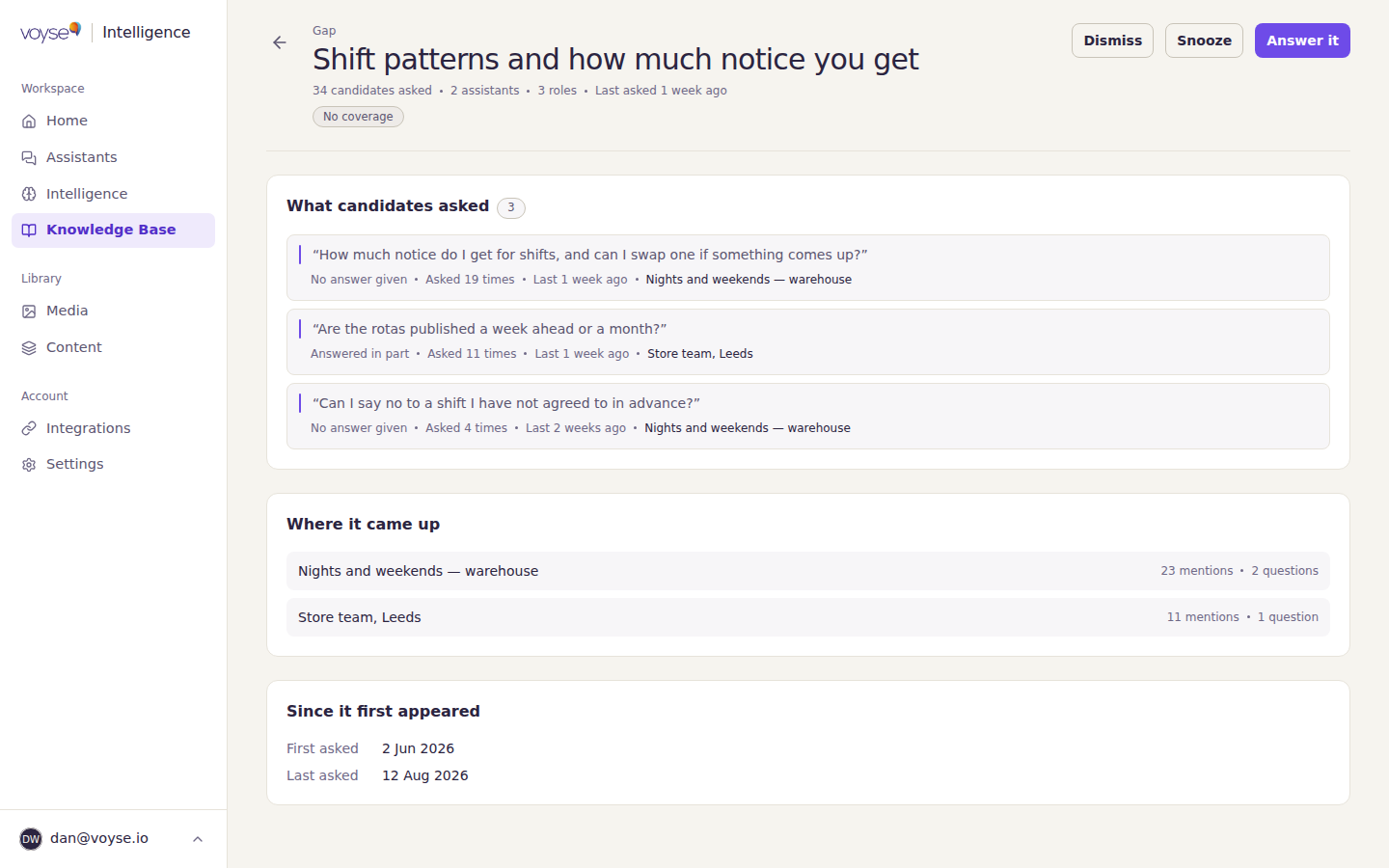
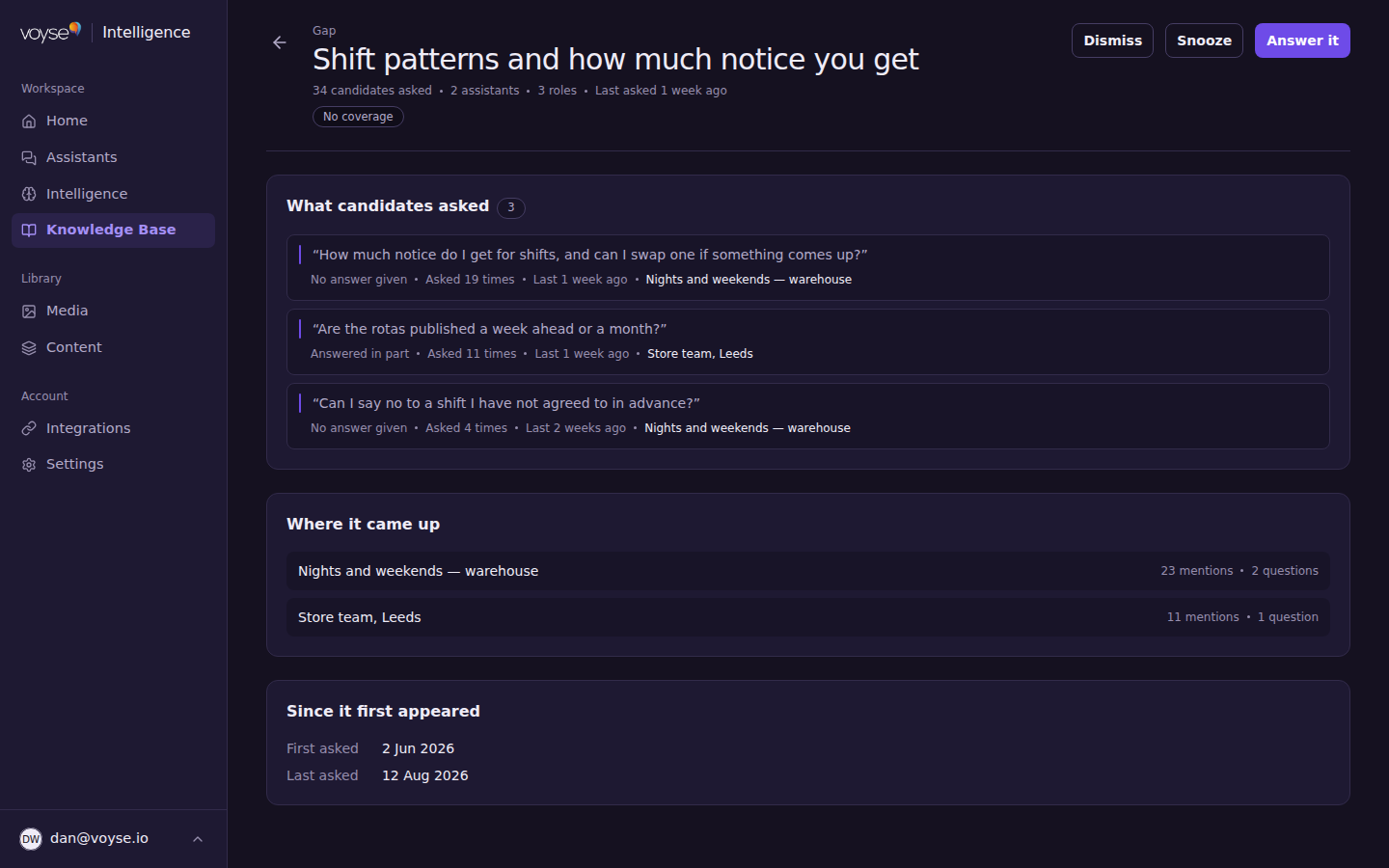
Select the gap itself to see the whole picture before writing anything:
- Entries that come closest — shown when something you already have nearly covers it, with how well each matches and whether it's out of date. Often the answer is to update one of those rather than write something new. A gap marked No coverage won't have this section, because nothing came close.
- What candidates asked — every phrasing, how many times each came up, and whether the assistant managed a partial answer.
- Where it came up — which roles and conversations it came up in.
- Since it first appeared — when it started and when it was last asked.
Then:
- Select Answer it (or Fill gap from the queue). If the gap has a near match, the primary action is Review the entry instead — take that route first, since updating what you have beats adding a duplicate.
- You land on the add-knowledge screen with the gap shown at the top, including the real questions. Paste or write the answer.
- Select Read it, then accept the entry on the review screen. See Build your knowledge base for what happens there.
The gap closes itself once the entry is live, and you'll see the count of gaps answered on the review screen. You don't have to come back and tick anything.
When it isn't a gap
Not every gap needs an answer, and pretending otherwise fills your knowledge base with noise.
- Dismiss it when it isn't something you'll ever answer. Choose a reason — Not a real gap, Not something we answer, Already covered by another gap, or Another reason, where you say why. That note is for whoever finds this next, so write it for them.
- Snooze it when the answer isn't ready yet — a policy under review, a location not open. Choose 7 days, 30 days or 90 days and it comes back to the queue then.
Both are reversible: dismissed and snoozed gaps sit in Resolved, and Reopen puts one back.
What good looks like
An empty Open tab reads No gaps to show, and your home screen says All candidate questions are covered — great work. That state doesn't last — new questions arrive as new candidates do, which is the point of the queue rather than a failure of it. Most teams work it weekly.