

Find your way around
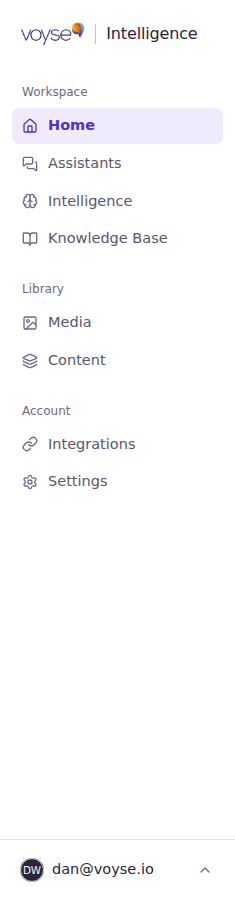
Everything is reached from the sidebar on the left, grouped into three parts: the work itself, the material it draws on, and your account.
Workspace
| Area | What it's for |
|---|---|
| Home | Whether anything needs your attention, and the headline numbers. Its own page: Home. |
| Assistant | Building and publishing the assistant candidates talk to. Named Assistants if your account has more than one. |
| Intelligence | What candidates are asking about, and what's missing. |
| Knowledge Base | Everything your assistant can answer from, plus the queue of questions it couldn't answer. |
If a number appears next to Knowledge Base, that's how many gaps are open — questions candidates keep asking that your assistant can't answer well.
Library
| Area | What it's for |
|---|---|
| Media | Photos and videos. |
| Content | Blocks built from your media — carousels, quotes, videos — that appear alongside answers and jobs. |
Account
| Area | What it's for |
|---|---|
| Integrations | Connecting your applicant tracking system. |
| Settings | Your organisation's details, website, branding and sharing previews. |
Both appear for account owners. If you don't see them, your account is set up without admin access — ask an owner on your team.
Your own settings
Select your email address at the bottom of the sidebar for:
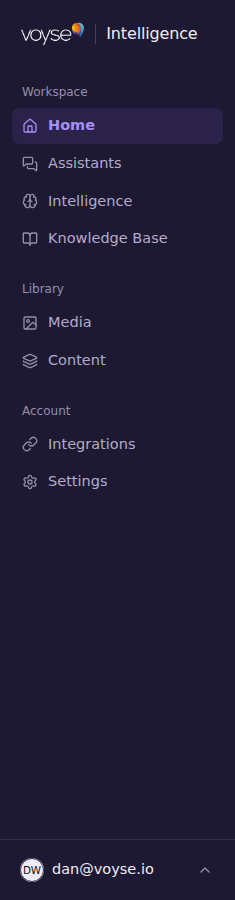
- Theme — Light, System or Dark. System follows your computer's setting.
- Your account — your own details.
- Manage users — inviting colleagues and setting what they can reach. Owners only.
- Sign out.
Saving your work
Screens that hold a record you fill in — settings, an assistant, a knowledge entry — save when you select Save changes, and warn you if you try to leave with unsaved work. When a form is long, the save button follows you down the page rather than staying at the top, so you never have to hunt for it.
On a narrow screen
The sidebar collapses. Use the menu button at the top left to open it.