

Content
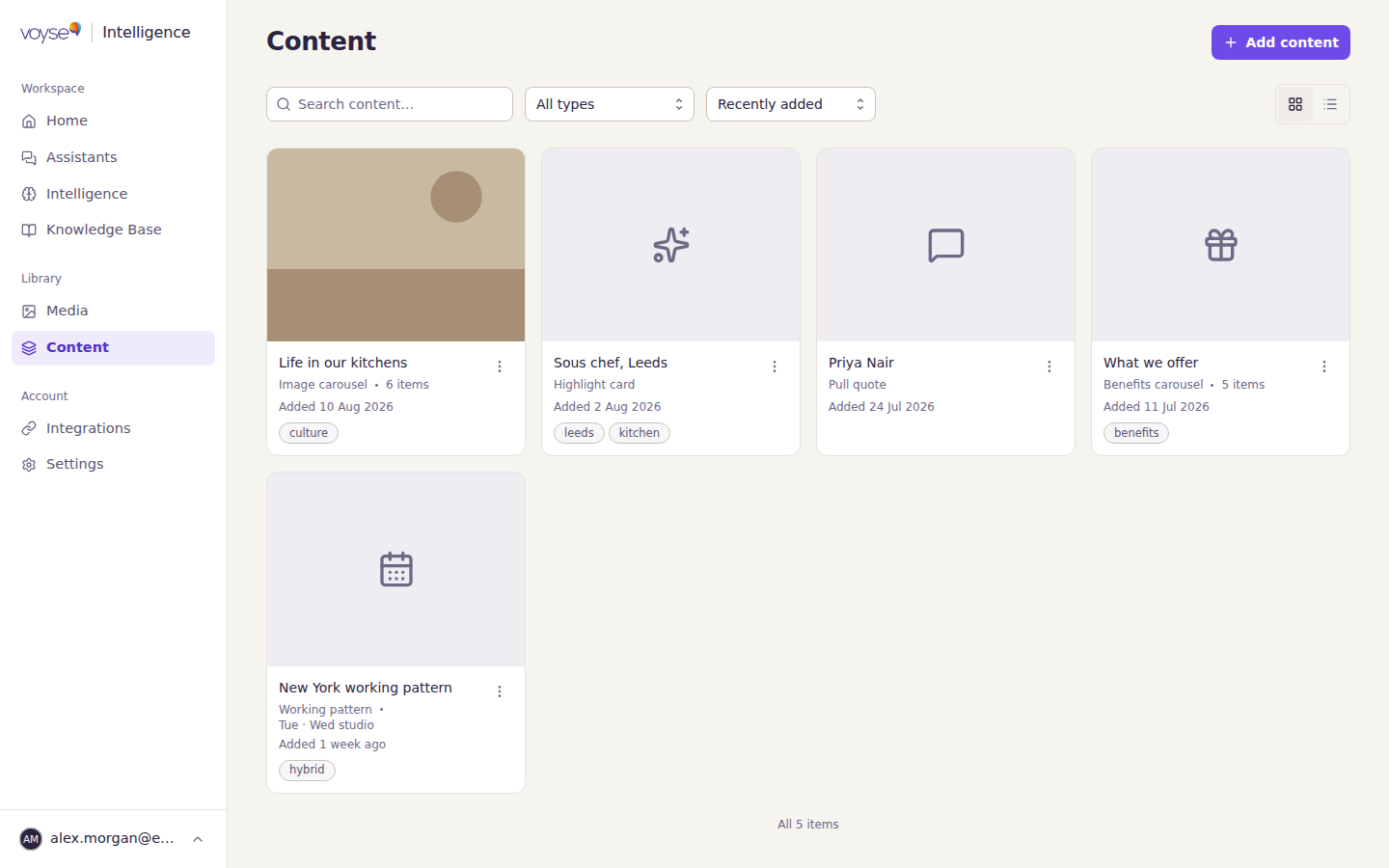
Content blocks are the pieces candidates see alongside a role. Where your knowledge base answers questions in words, these show things: the team, the place, what people say about working there.
You build them from what's already in Media, so add your photos and video first — see Media.
The five kinds
| Block | What it is | What you need |
|---|---|---|
| Image carousel | Several images a candidate can swipe through, shown in the order you arrange them. | A title, and at least one image. |
| Pull quote | Something a colleague said, with their name and role. | The quote, a name and a role. |
| Highlight card | A role or location, with labels and a link. | A title, a location and a description. |
| Benefits carousel | A set of benefits, each with its own title and description. | A title for the set, and a title and description for every benefit. |
| Working pattern | A week grid showing which days are on-site, with a label for those days and a few lines of detail. | A title. |
Each editor tells you what's still missing before it will save, so a half-finished block can't reach candidates by accident.
Build one
- Select Content in the sidebar, then Add content.
- Choose the kind of block.
- Fill it in. Where a block needs images, Pick from your media library, or upload something new — you don't have to go back to Media first.
- For a carousel, drag the images into the order you want. That order is what candidates see.
- Select Save changes.
Where they appear
Blocks show alongside roles. You choose which ones on your assistant's Jobs step — one slot above the job title, one below the job description. A carousel or a video works well above; benefits or a quote from the team work well below. See Create your assistant.
A block you've built but not placed does nothing yet, which is fine while you're assembling a library of them.
Open any block and you'll also find Matching roles — departments, locations, title keywords or specific roles. Leave every field empty and it shows for whatever role it's placed on; fill any of them in and it only shows where a role matches, which is how one library serves teams with different policies or sites.
Writing them well
- A pull quote should sound like a person, not like a careers page. Use what someone actually said, and their real role.
- Benefits are read quickly. One clear line each beats a paragraph.
- Images do the work photographs are good at — showing the place and the people. A photograph of a building tells a candidate less than a photograph of the team in it.