

Put your assistant in front of candidates
A published assistant can reach candidates two ways: sitting on your careers site as a launcher they can open from any page, or behind a link you share. Most teams use both.
If your careers site is built by Voyse
There's nothing to install. The assistant is added to your careers site for you, and your settings reach it automatically. The Embed step says as much under the code — If Voyse built your careers site, the assistant is already on it — you can skip this. Pasting the snippet anyway does no harm, but it achieves nothing.
Set the appearance options below, publish, and it's there.
If your careers site is your own
Someone with access to your site's code pastes one line into it, once.
- Open your assistant and go to the Embed step.
- Set the appearance options (below), so what you install looks right from the start.
- In Embed code, select Copy.
- Send it to whoever maintains your careers site. It goes on the page once, before the closing body tag, and works across every page of the site.
The snippet carries nothing but the assistant's identity — no settings. That's deliberate: everything you change afterwards reaches the installed site on its own, so your site's code never has to be touched again. The panel says as much under the code: Paste on your careers site once. Changes here apply automatically.
How it looks
Set these on the Embed step, before you send anyone the code.
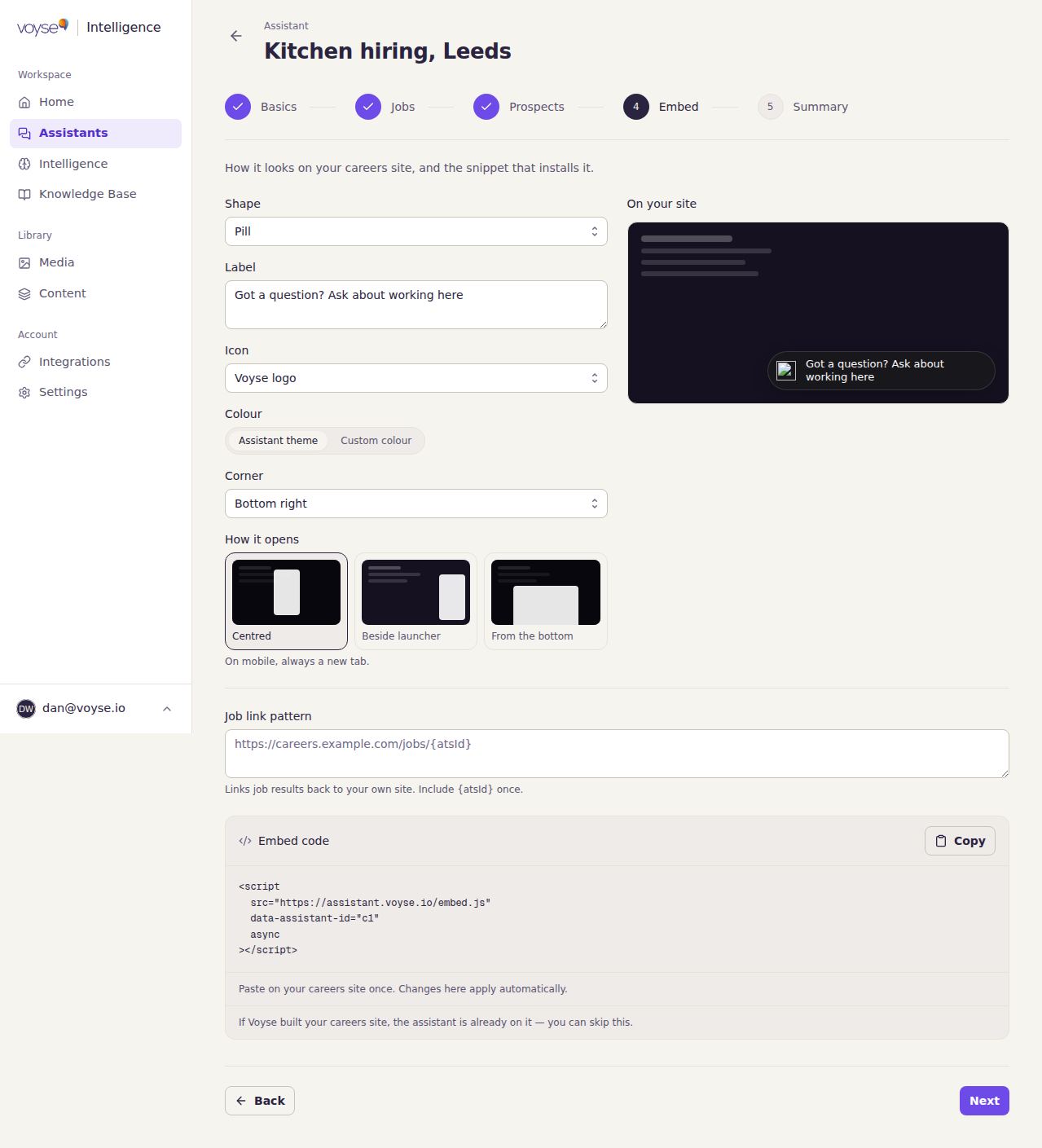
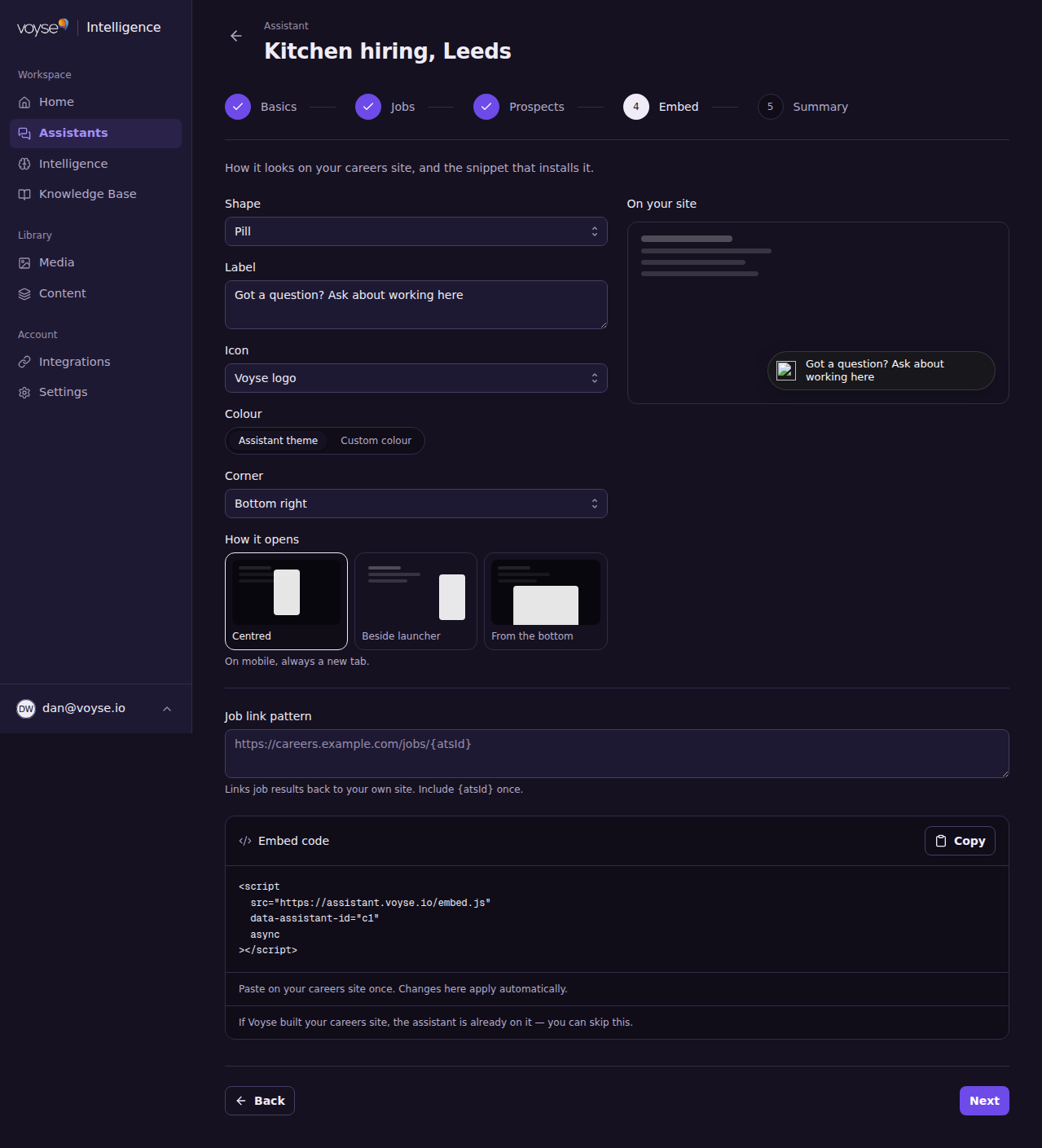
| Setting | What it controls |
|---|---|
| Shape | The launcher candidates see: Pill, Bubble, Edge tab, Docked bar or Corner composer. A docked bar needs clear space at the foot of your site; a corner composer keeps its ask field on the page and grows the panel from it, so it has no separate icon and no How it opens — see below. |
| Label | The wording on the launcher. On shapes without room for text it's read out by screen readers only, so write it for someone who can't see it. |
| Icon | Voyse logo or Chat symbol. Not shown for Corner composer. |
| Colour | Follow the Assistant theme, or set a Custom colour. Text can be Auto, Light or Dark — leave it on Auto unless the contrast looks wrong. |
| Corner | Which corner the launcher sits in. |
| How it opens | Centred, Beside launcher, or From the bottom. On mobile it always opens in a new tab, whichever you choose. Not shown for Corner composer, which always grows from itself. |
| Job link pattern | Sends job results back to your own site instead of ours. Give the address pattern of your job pages, including {atsId} exactly once — for example https://careers.example.com/jobs/{atsId}. |
Sharing the link instead
On a published assistant, Share directly gives you:
- The Assistant link — Copy link, or Download QR for print, events and signage.
- Role-specific links, which open the assistant on one role. Use these in a job advert so the candidate lands on the thing they clicked.
- Personalised links for named people, if your plan and applicant tracking system support them.
Checking it worked
Open your careers site in a normal browser window and look for the launcher in the corner you chose. Open it and ask something you know is in your knowledge base.
If it doesn't appear: confirm the assistant is published, and confirm the snippet is on the page you're looking at rather than only the homepage. If you see We can’t build your embed snippet, something in your account's setup is incomplete — tell us and we'll fix it.