

Templates
A template is a layout. Your job adverts, your content pages and your job board each render through one, which is why a hundred jobs can share one design and a change to that design reaches all of them.
Most teams have their templates built once — by us, or by an agency working to your brand — and then rarely touch them. This page is about living with them rather than building them.
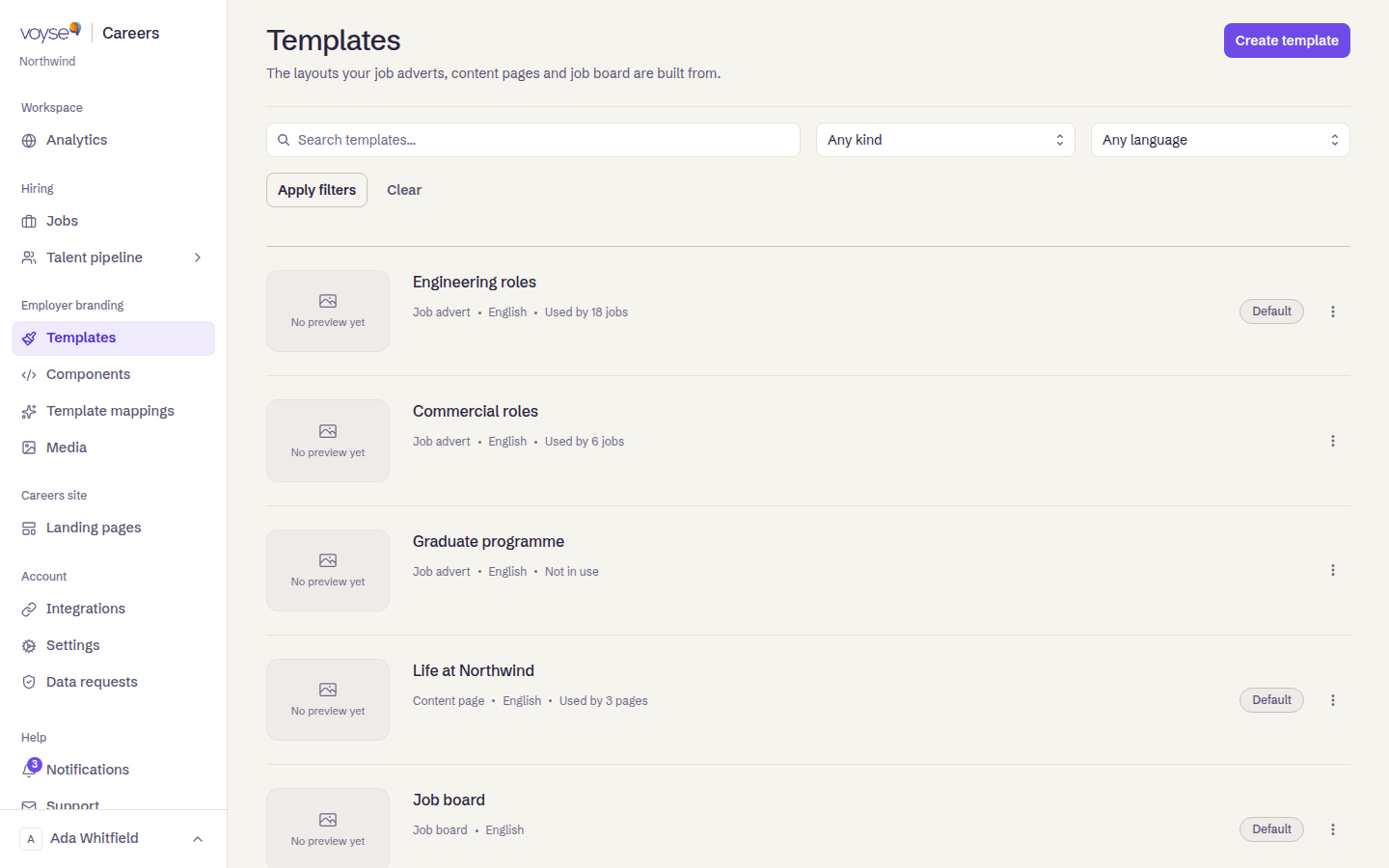
The three kinds
| Kind | What it renders |
|---|---|
| Job advert | A single role's page. |
| Content page | A landing page — about, culture, a location. |
| Job board | The list candidates browse. There is one board. |
Each template has a language, and each kind can have a Default: the one used when nothing else is chosen. The list shows how many jobs or pages use each template, or Not in use where nothing does — the quickest way to spot a template you can retire.
Which template a job gets
Three things decide it, in order of effort:
- The default for its kind, if nothing else applies.
- Template mappings — rules that pick a template from a job's own fields. Under Template mappings you build a rule from a Job field, a comparison and a Value to match, and the page states How the rules combine so you can see what wins. This is how "every kitchen role uses the kitchen template" happens without anyone setting it per job.
- Setting it on the job itself, which overrides both.
Mappings are worth the ten minutes if you import roles regularly: without them, every new role arrives on the default template until someone changes it.
Components
Components are the reusable blocks templates are built from — a header, a footer, a benefits strip. Editing one here updates every template using it, which is the point and also the risk: change the global footer and every page changes with it.
Components can be archived, and one that was written inline in a single template can be promoted into the library so other templates can use it too.
Editing by describing the change
Some templates — generally your more recently built ones — open straight into a conversation instead of the block editor: a panel for typing what you want changed, beside a live preview of the draft. Older templates still open the form editor described above; there is no switch to choose one or the other.
Select a section of the preview first if the change is about one part of the page, then describe it in Ask for a change… and select Send. The preview updates to show the draft. Save changes commits it, Undo reverses the last change, and each earlier exchange in the conversation offers Restore previous version if you want to go back further.
This is also where Fix in chat links elsewhere in the product — on the accessibility report, and in a landing page's settings — bring you: the relevant section is already selected and what to change is already typed, so you only need to check it and send it.
You can also drop a picture straight onto the conversation. It goes into your Media Library the same way an upload there would, and the panel then asks Where do you want it? with a chip for each picture already in the draft it could replace — pick one to swap it in. Drop several at once and they all land in the library; describe what you want done with them the same way you'd describe any other change. Only PNG, JPEG, WebP, GIF, AVIF and SVG files work here — anything else is refused with a note saying why, and nothing is added.
Before you change anything
Templates and components are code as much as design, and a change reaches your live site. If you have a preview or a staging address, look there first. If a template came from an agency, tell them what you changed — the next handover will otherwise overwrite it.