

Jobs
Jobs lists every role, whichever way it got here, with the applications each one has drawn. It's the screen you'll use most.
Reading the list
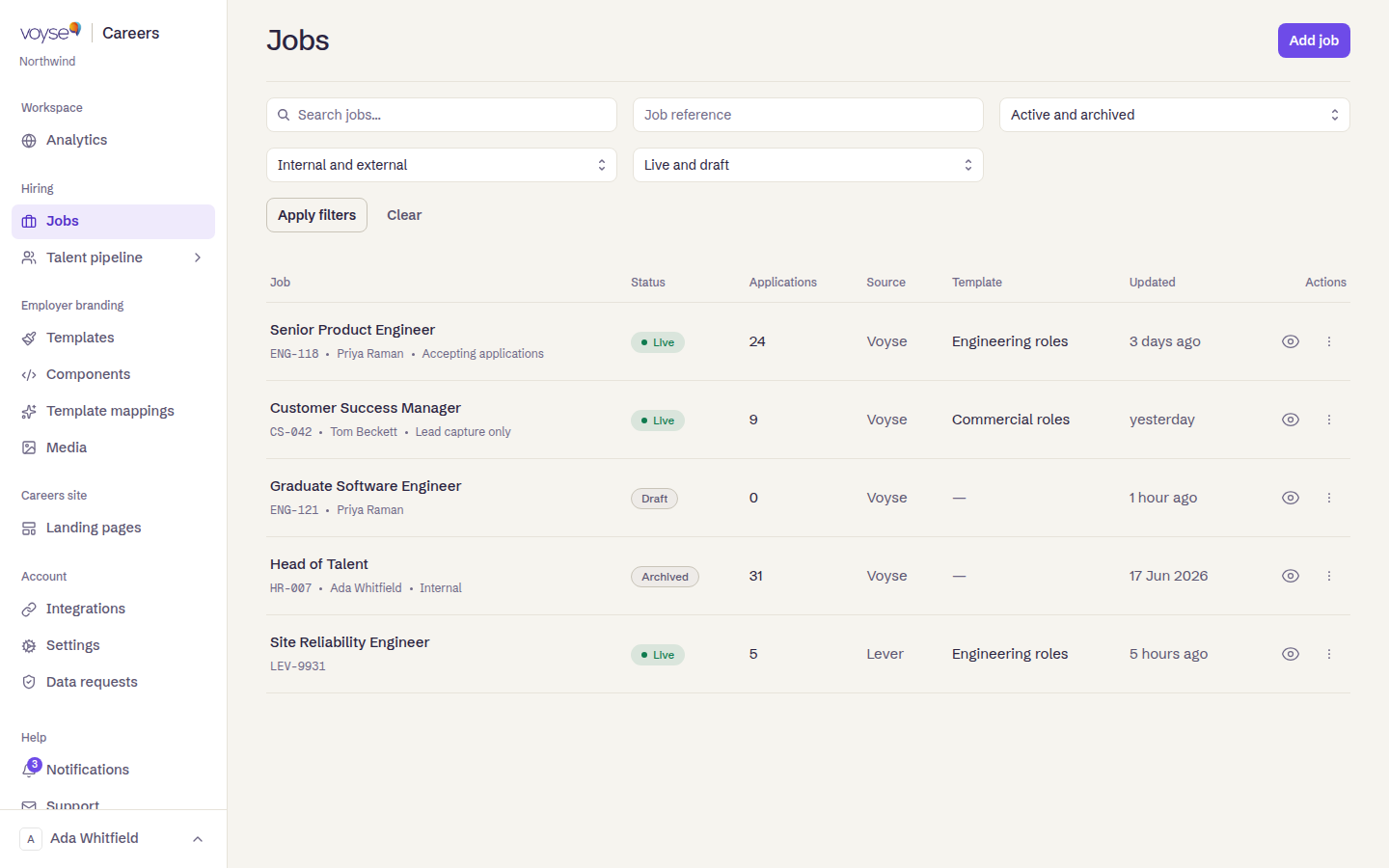
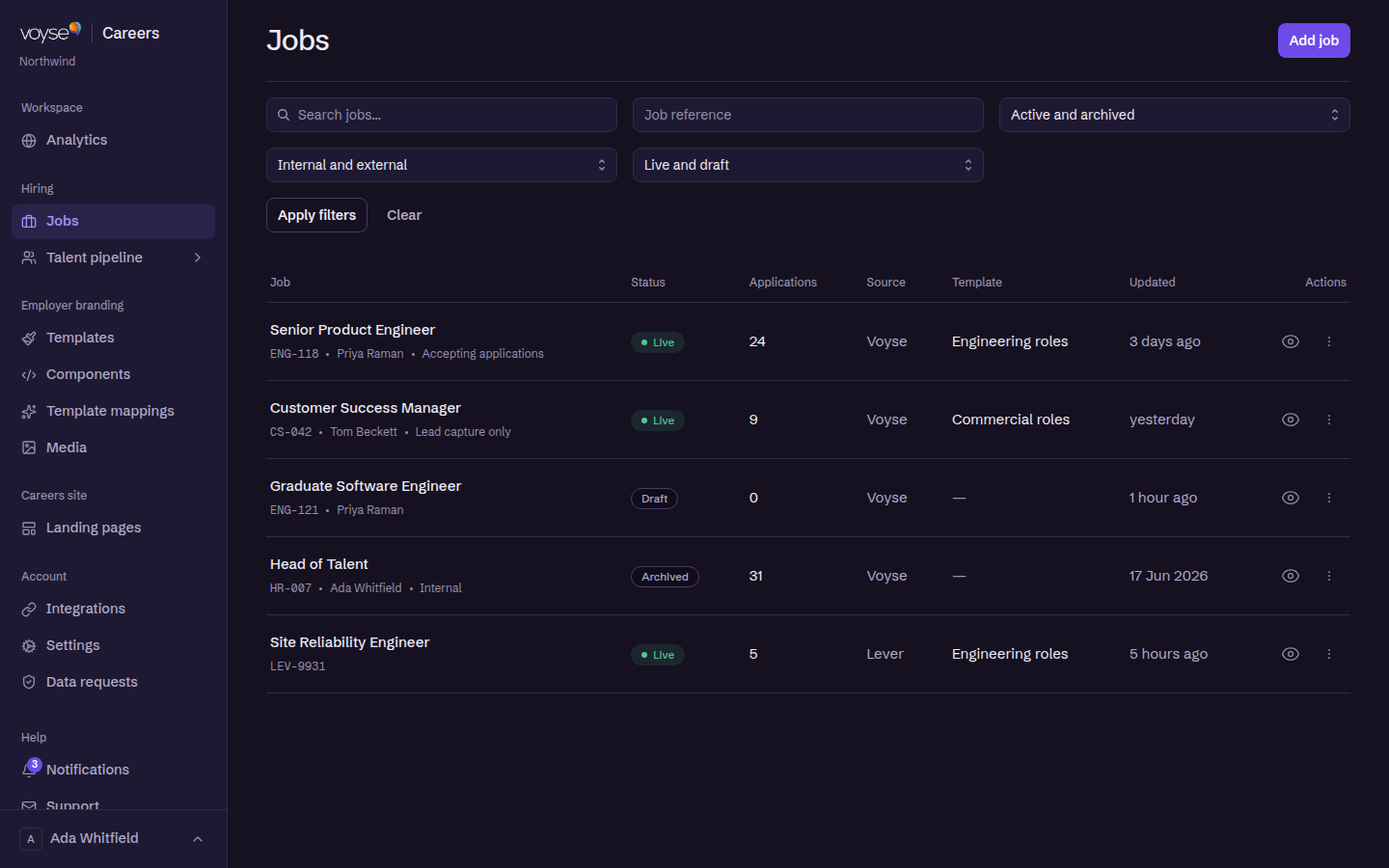
Each row shows the role, its Template, its Status, its Source and when it was last Updated, plus the number of Applications.
| Status | What it means |
|---|---|
| Live | Published and on your site. |
| Draft | Not on your site yet. |
| Archived | Retired, kept for the record. |
Under each role's title you'll see its reference, who owns it, and one more detail worth reading: a live role says either Accepting applications or Lead capture only. The second means the advert is up but the apply route is closed — candidates can still find it and get in touch, but no application will arrive. It is what Disable Applications does, and it gets left on after a role is filled more often than anyone would like. Internal appears here too, for a role that is live but not listed publicly.
Source is where the role came from — your ATS provider, or Voyse for one created here. A dash in the Template column means no template is set yet, so the role would render on the default.
Filters run across the top: search by title, by Job reference, and by status, source and whether roles are archived. They apply when you select Apply filters rather than as you type, and Clear resets them.
Roles from your ATS
An imported role belongs to your ATS. Voyse won't let you edit or disable it here, because the next sync would overwrite you — change it in your ATS and it comes across. What you can change in Voyse is which template renders it.
Roles created in Voyse are fully yours.
Row actions
- View Applications — everyone who applied for this role.
- Disable Applications / Enable Applications — stop or resume taking applications while leaving the advert up. Useful when a role is filled but you still want it visible.
- Duplicate Job — the fastest way to post a near-identical role.
- Copy Link — the public address of the advert, for sharing in a post or a message.
- Delete Job — permanent, and it asks first. Archive instead if you might want the record.
Questions on the apply form
A job's Questions tab sits between Media and Distribution. It sets what the Voyse apply form asks for that role.
Under Sections, tick what the form should ask for: Ask for the candidate's location, Ask for a profile URL, Ask for an address and Ask for education. With address or education on, the form also asks for a title. It doesn't ask for a work history.
Screening questions are your own questions for this role. Select Add screening question, write the Question, choose an Answer type (Short answer, Long answer, Yes or no, Single choice, Multiple choice or Checkbox) and tick Required if candidates must answer. For Single choice and Multiple choice, enter one option per line under Options. The arrows move a question up or down, and the bin removes it. Questions left blank are dropped when you save. Answers are stored with the application.
Diversity works the same way, with Ask for diversity information as the switch. Diversity answers stay off the candidate's contact record and out of the screening answers, and candidates can leave the section blank. If a candidate answers any diversity question, they must answer the ones you marked Required.
Under Declarations, Ask about the right to work in the advertised location and Ask for consent to be contacted about similar roles add those questions to the form.
On the Distribution tab, Custom Apply URL is always shown. Entering a link doesn't change where candidates apply: they still apply on Voyse until you tick Send applications to 3rd party link.
Empty and error states
Your jobs will be listed here means nothing has arrived yet — if your ATS is connected, check that a sync has run. Couldn't load the jobs is a failure to fetch rather than an empty list; try again before assuming your roles are gone.