

Connect your ATS
Integrations holds your ATS, your job boards, and the keys other systems use to reach this workspace. Connecting your applicant tracking system is what makes everything else work without copying: roles arrive on their own, and applications go back where your team already looks.
Connecting
Scroll to Applicant tracking. Your ATS lists every system Voyse connects to; open the one you use and enter its credentials. Some systems authorise Voyse through their own sign-in; others ask for credentials you generate in the ATS. A system you have connected reads Credentials saved on its card, and reopening it shows a Configuration panel you can change.
Where your system supports it, you'll also see a Webhook configuration section with a Webhook URL to add in your ATS. That's what makes a change there show up here immediately rather than at the next sync.
Getting your first roles across is the point of this step. When they've arrived they appear in Jobs, each ready to be given a template and published.
What your ATS lets Voyse do
Capabilities lists each Feature and whether it is Granted or Not checked for your connection. Where something isn't granted, the cause is almost always a permission on the ATS side rather than anything in Voyse.
Roles from your ATS behave differently
An imported role is owned by your ATS. In Jobs its source shows as your provider rather than Voyse, and the actions that would edit or disable it in Voyse are not offered — change it where it lives and the change comes across. Roles you create in Voyse are yours to edit here.
The rest of this page
- Job boards and analytics — other third-party connections.
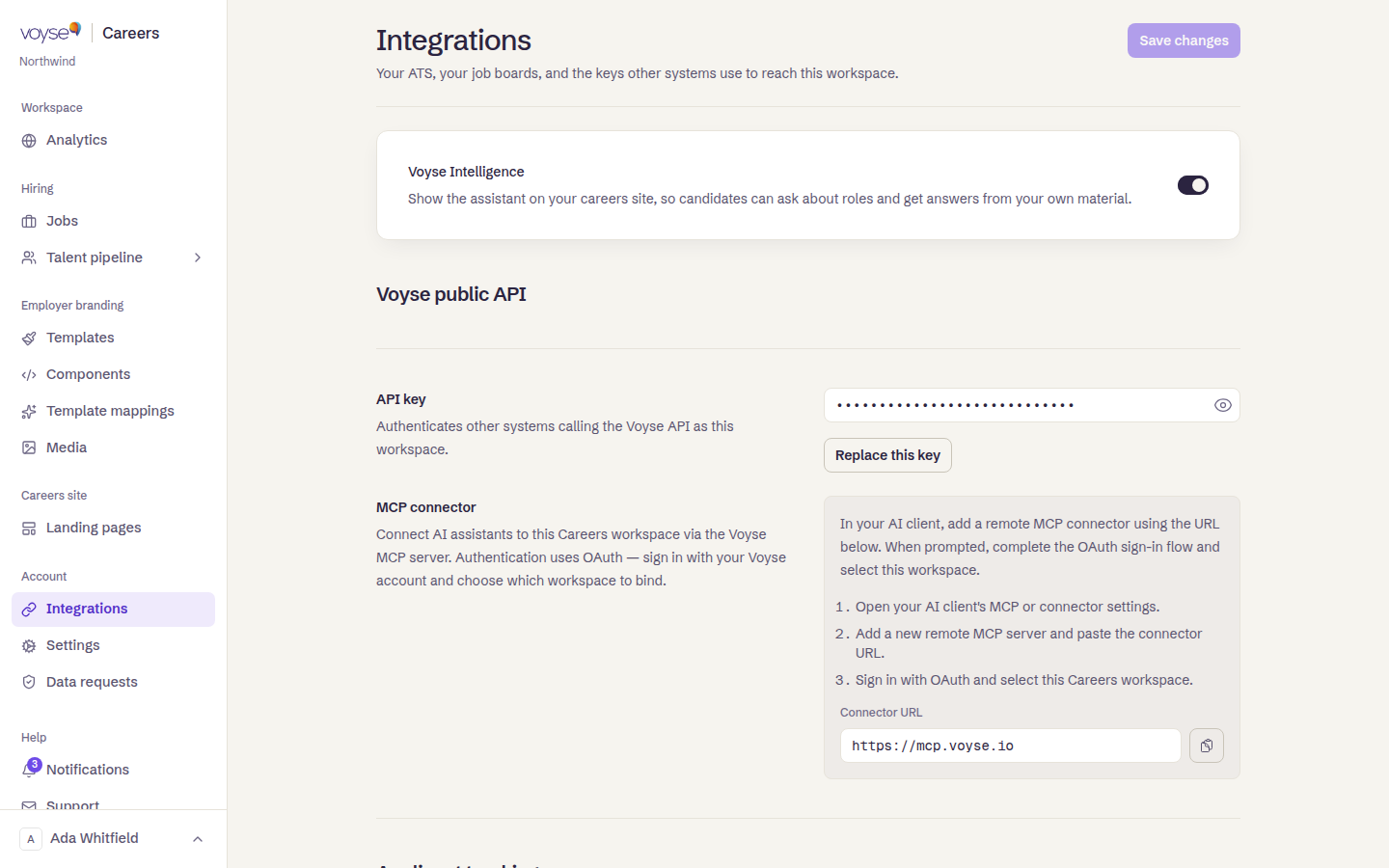
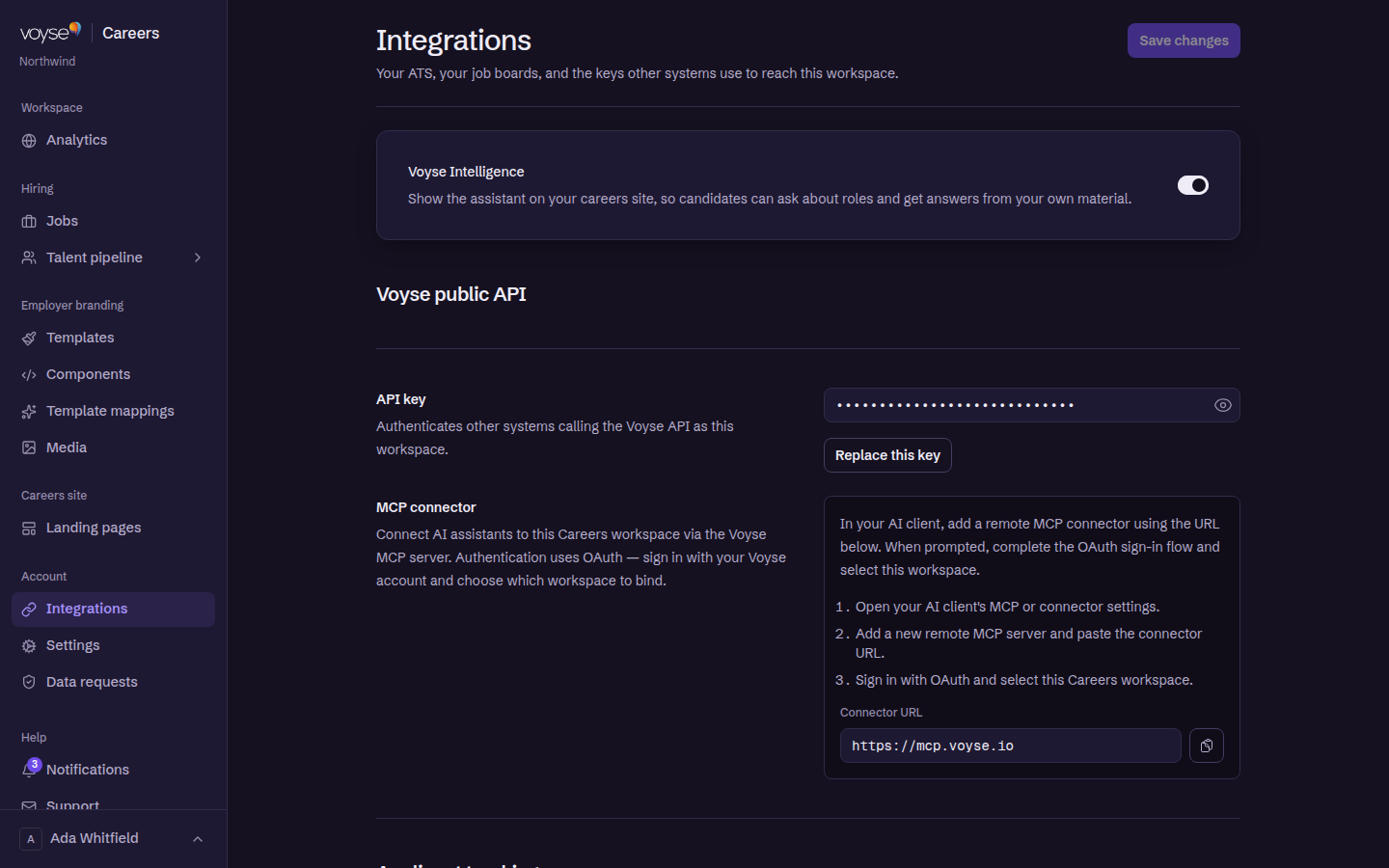
- Voyse public API — an API key that authenticates other systems calling Voyse as this workspace. Treat it as an administrative credential rather than a read key: keep it server-side, never in a browser or a mobile app, and give it only to systems you would trust with your account. Replace the API key? issues a new one and retires the old, which is what to do the moment you think a copy has gone astray.
- MCP connector — a Connector URL for AI clients that support remote MCP servers. Paste it into your client's connector settings, sign in, and pick this workspace.
- Voyse Intelligence — Show the Voyse Intelligence assistant on your careers site. If you run Intelligence, this switch is what puts its assistant on the site; there is nothing to paste into your templates.