

Connect Voyse Careers
By the end of this page your AI client will be connected to one Voyse Careers workspace, and you can ask it to work on your careers site.
Before you start
- You need the Account admin role in the workspace. People with the User role can't connect.
- You need an AI client that supports remote MCP connectors, and permission to add one. Some clients leave adding connectors to an administrator.
Steps
In the Careers admin, select Integrations in the sidebar.
Find MCP connector, under Voyse public API, and copy the Connector URL with the copy button beside it. The URL is
https://mcp.voyse.io.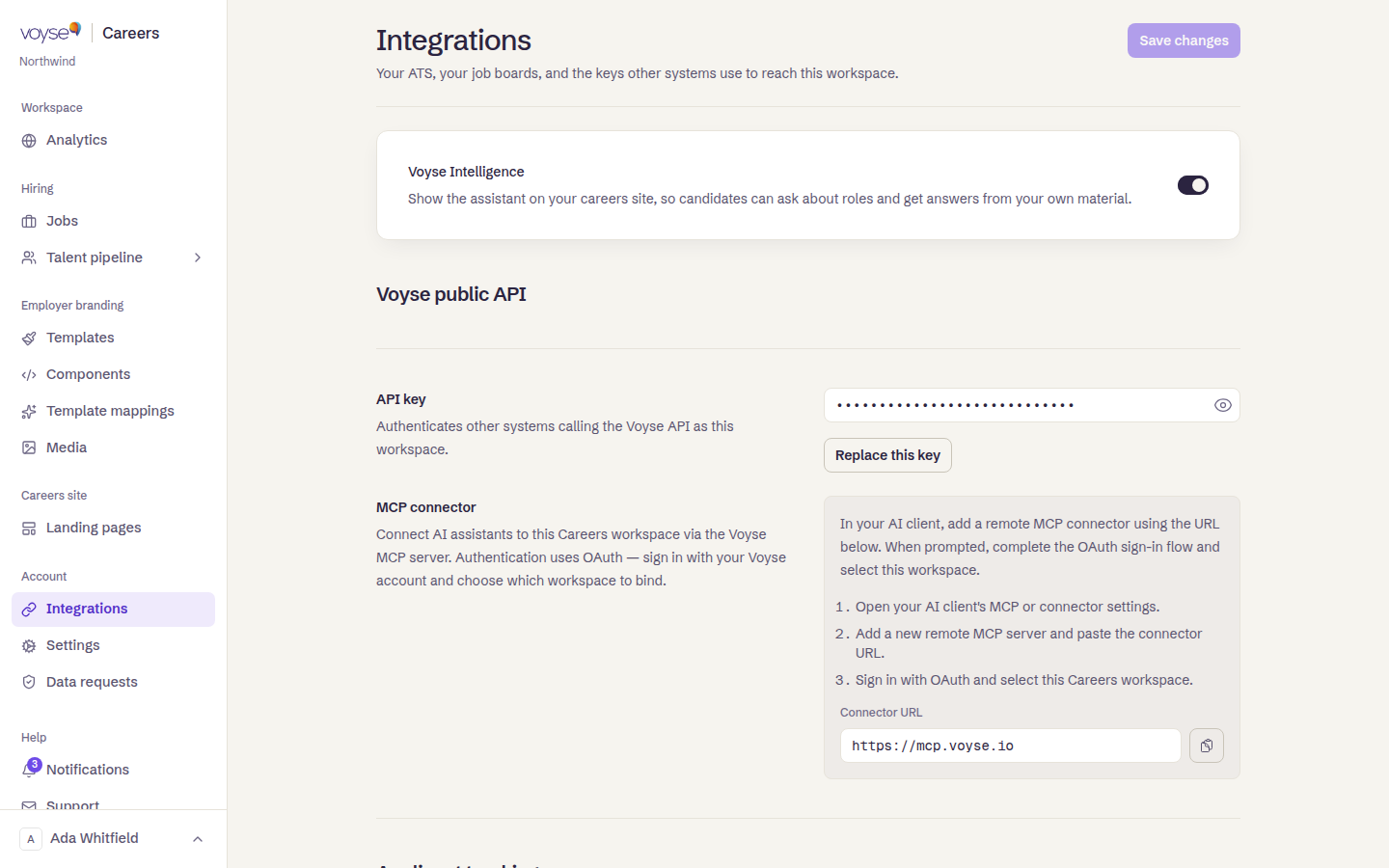
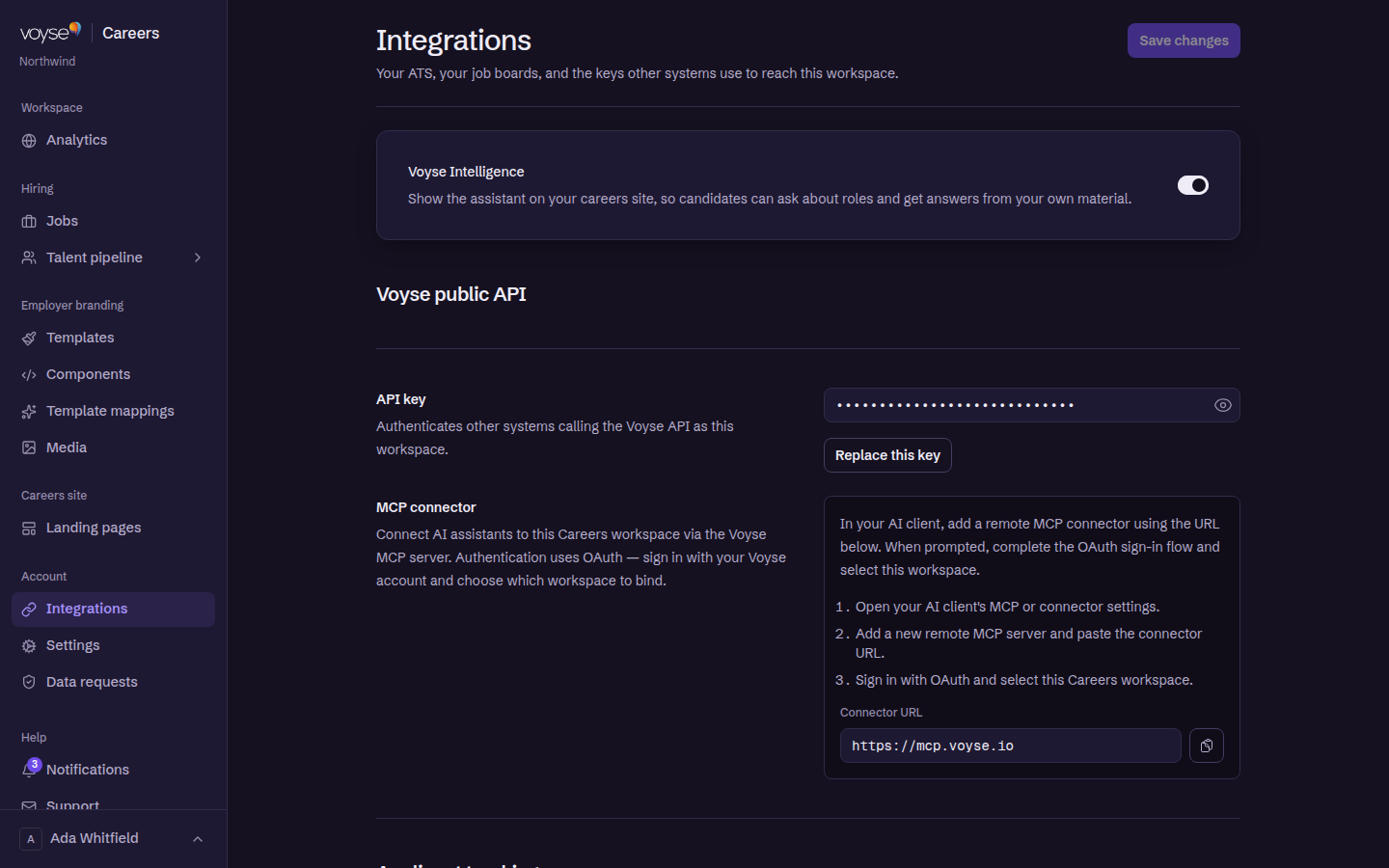
In your AI client, open its connector settings and add a new remote MCP connector. Paste the URL when asked for one.
When the client opens the Voyse sign-in page, sign in with the email and password you use for the Careers admin.
If you have access to more than one workspace, choose this one under Choose a Careers account. With only one, Voyse connects it straight away.
You're returned to your client, and the connector shows as connected. To check it worked, ask the client what it can do on Voyse. Its answer should name your workspace.
If it didn't work
- No accounts you can connect. Your sign-in doesn't have the Account admin role in any workspace. Ask an account admin to give you that role.
- Unable to complete connection. Something stopped the sign-in from finishing, which is usually the same role problem. Check your role, then connect again from your client.
- "Missing OAuth access token" or "Could not validate OAuth access token". The client's sign-in didn't take or has lapsed. Remove the connector from your client, add it again and sign in.
- "MCP session expired or was closed". The connection was idle for 15 minutes. Ask again. If the request still fails, reconnect from your client.
What happens next
The client stays signed in for 30 days. After that you'll need to sign in again. See What the Careers connector can do for what to ask it, and Sign in and choose an account for switching workspace or disconnecting.